
Reading your gradebook
Once a set is marked, the marks stop being a pile and start being a picture. The gradebook puts every student against every activity on one screen, so you can see who is moving, who is stuck, and what to do about it on Monday.
This guide assumes you have graded at least one activity. If you have not, start with Bulk grading a class set.
Watch the walkthrough
Every student, every activity, one screen.
Open the gradebook
From Classes in the left rail, open your class, then choose the Gradebook tab. The tab shows a count of anything still waiting on you.
1. Start with the four numbers
The strip across the top is the state of the class in one glance.
- Completion is how much of the assigned work has actually been done.
- To grade is what is waiting for your sign off. When this is zero it says all caught up.
- Class average is the mean across everything graded so far.
- Not done counts work that is past due with nothing submitted. This is the number worth acting on.
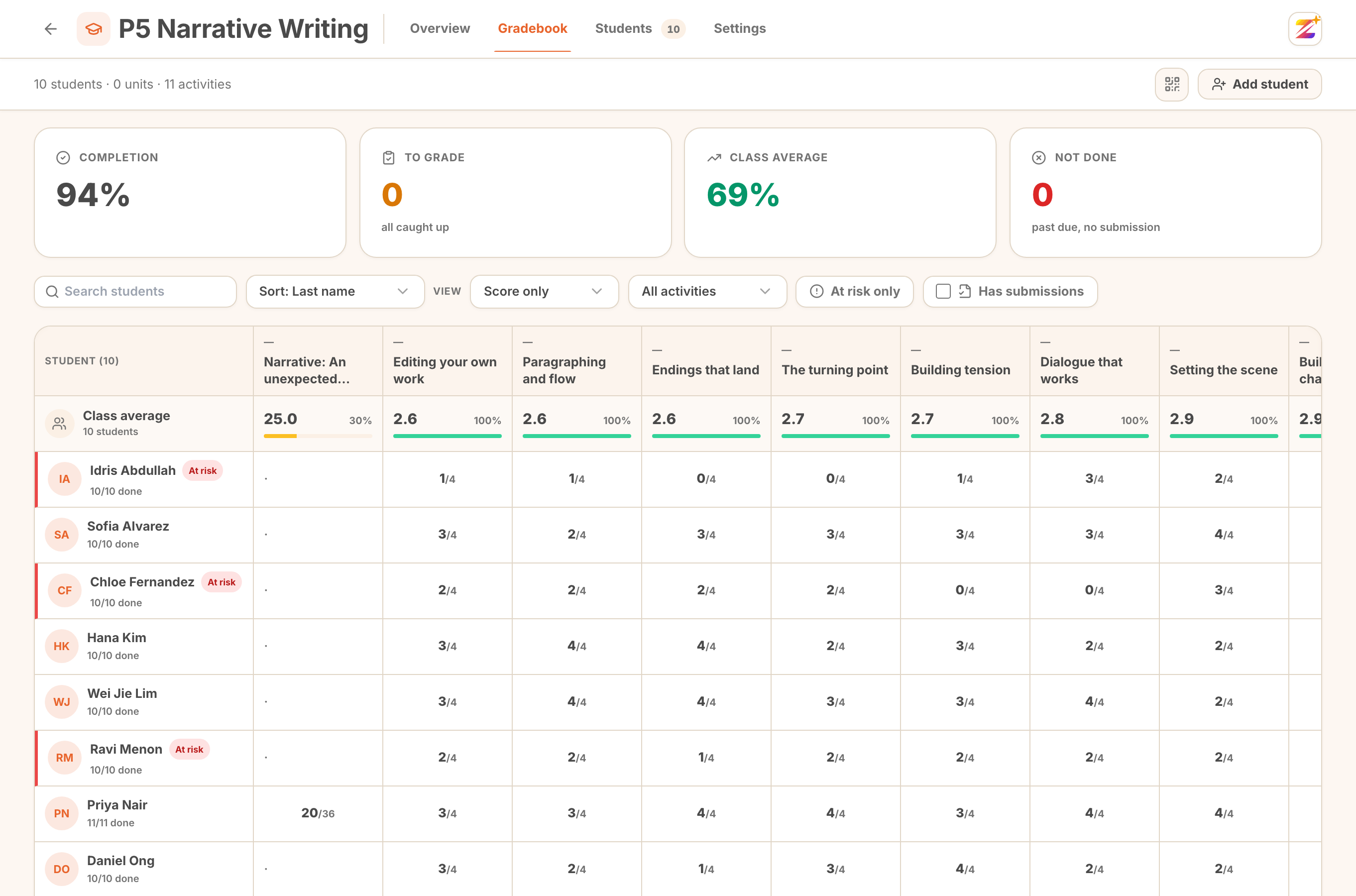 The four KPI cards across the top of the gradebook.
A high Not done with a healthy Class average usually means the work is landing for the students who attempt it, and the problem is submission, not ability. Those are different conversations.
2. Read the grid
Students run down the left, activities run across the top. The first column stays put when you scroll sideways, and the header row stays put when you scroll down, so you never lose track of whose row you are on.
Each cell carries a status you can hover to read: Not done, Submitted, awaiting review, In progress, or Done.
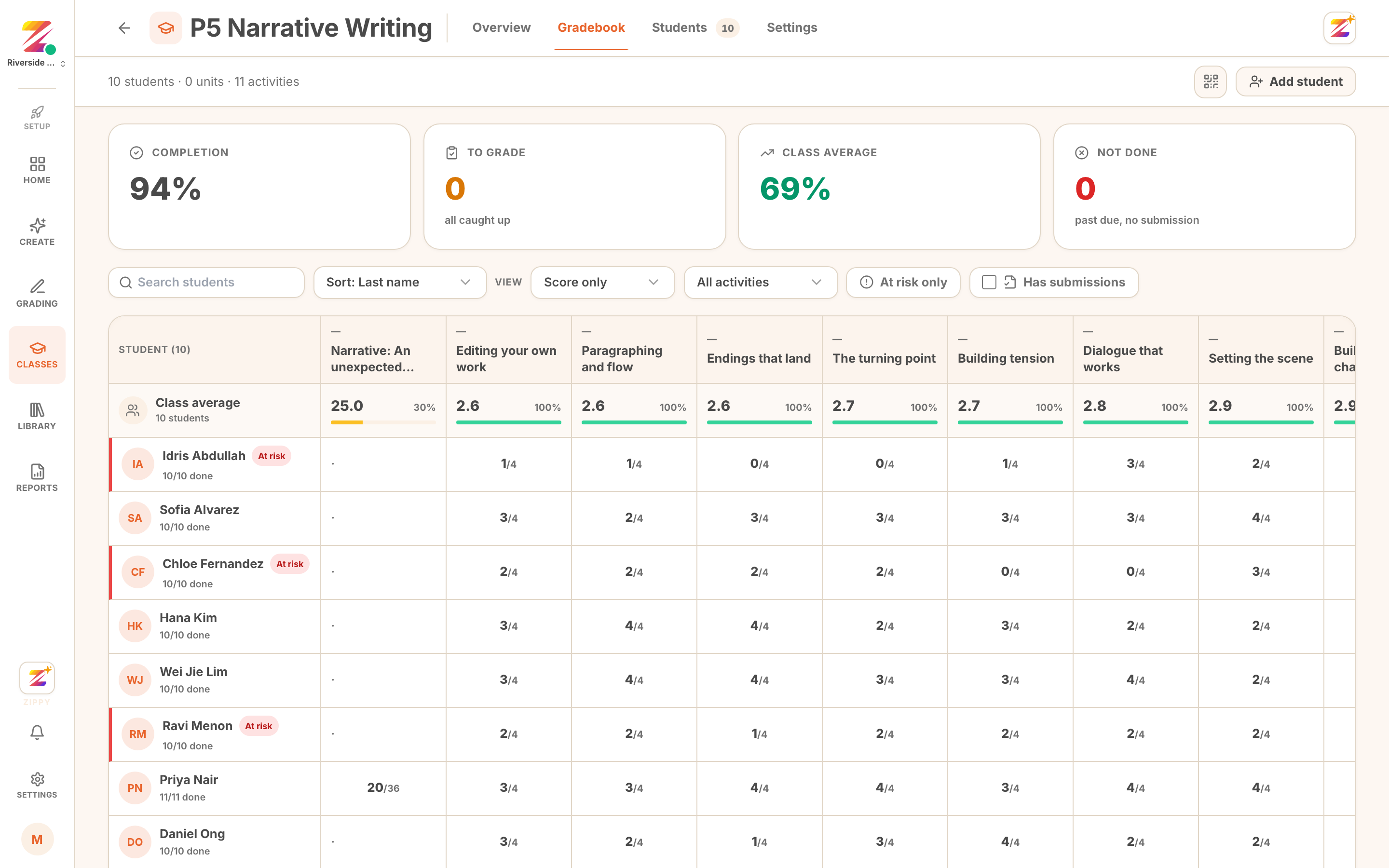 The gradebook grid with the frozen student column and a sticky activity header row.
The row directly under the header is the Class average for each activity. Read across it before you read any individual student. A column that dips for everyone is usually the task, not the class.
3. Switch the cells to a rubric breakdown
This is the setting most people miss. By default each cell shows a single score. Change View to Rubric breakdown and every cell opens up into the traits you actually assess, so a mark becomes a diagnosis.
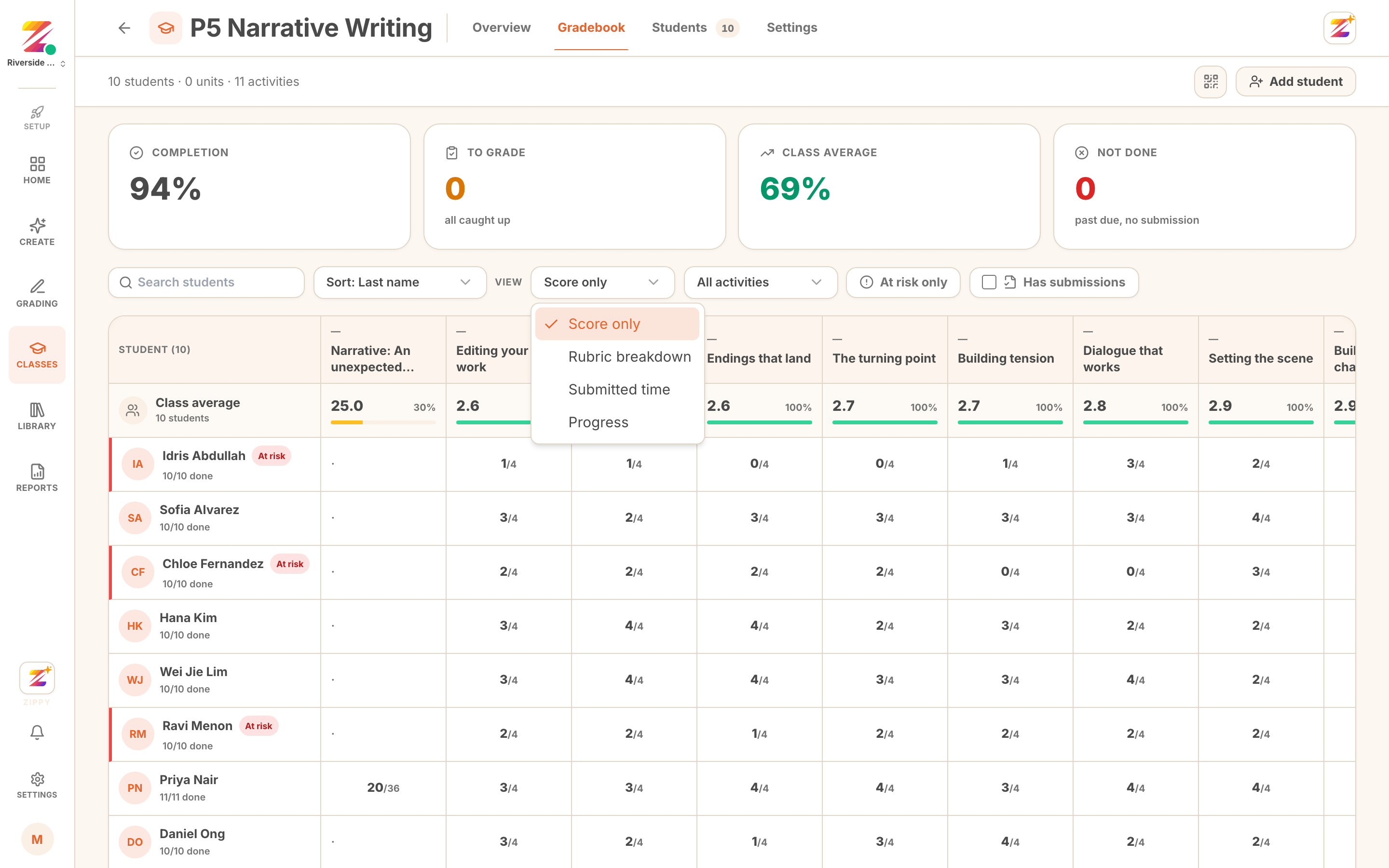 The View control open, showing Score only, Rubric breakdown, Submitted time, and Progress.
Now a student sitting at the same overall score as their neighbour can be visibly weaker on one trait and stronger on another. That difference is what you teach to.
The other two views are useful in narrower moments. Submitted time shows you who works at the last minute. Progress shows how far through an activity each student got.
4. Narrow to the students who need you
The toolbar filters the grid down rather than making you scan it.
- At risk only collapses the class to the students the analytics have flagged.
- Filter by unit scopes to one unit of a curriculum class.
- Has submissions hides activities nobody has handed in yet, which clears a lot of empty columns.
- Sort students reorders by last name, first name, average score, or most not done.
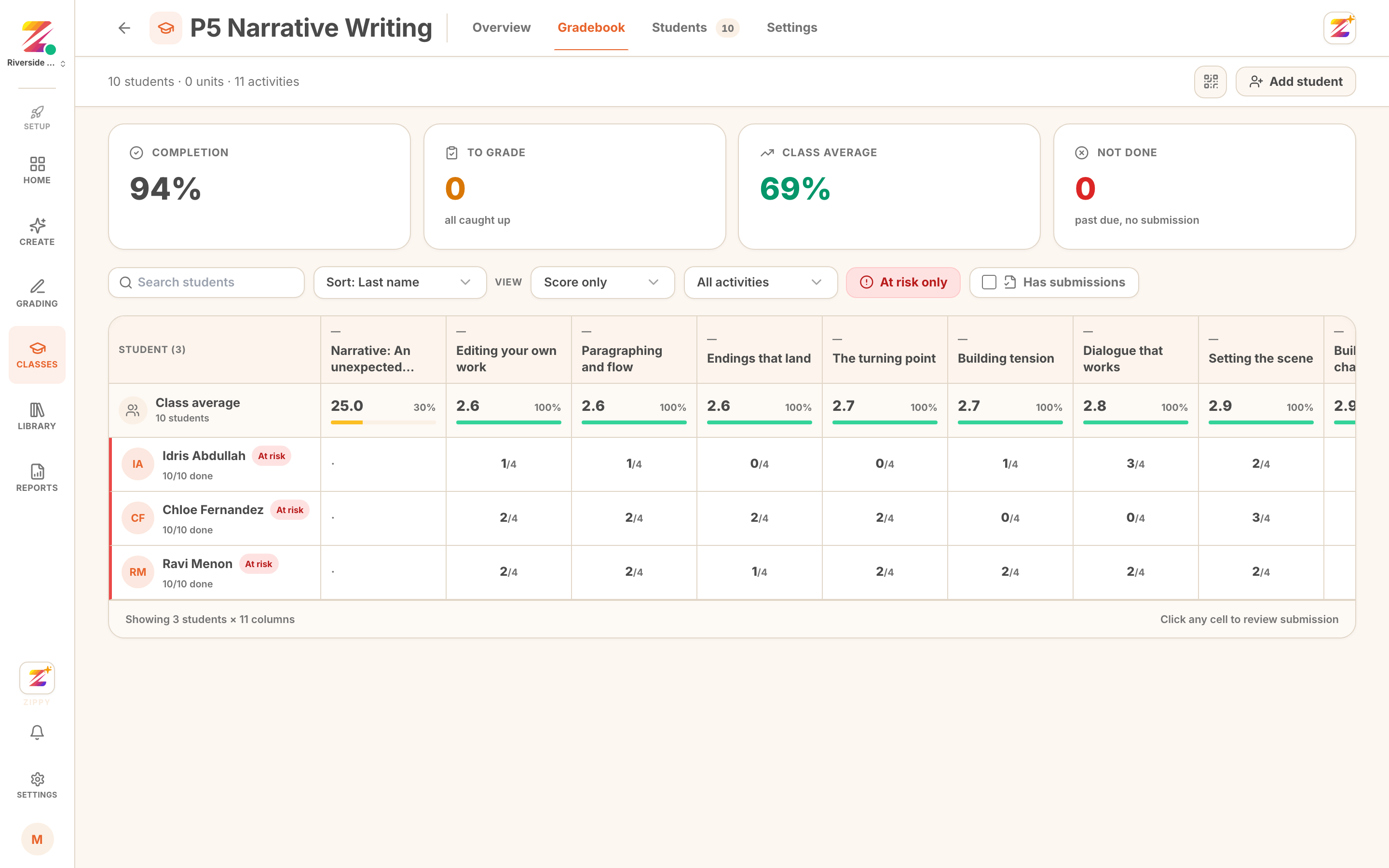 The gradebook filtered with At risk only turned on.
Sorting by most not done and then filtering to At risk only is the fastest way to build a list of who to speak to this week.
Every one of these lives in the URL, so a filtered view can be bookmarked or sent to a colleague and it opens the same way.
5. Jump to the work itself
Click any cell to open that student's submission for that activity. You land directly on the marked script, with the comment, the next step, and the inline annotations already there.
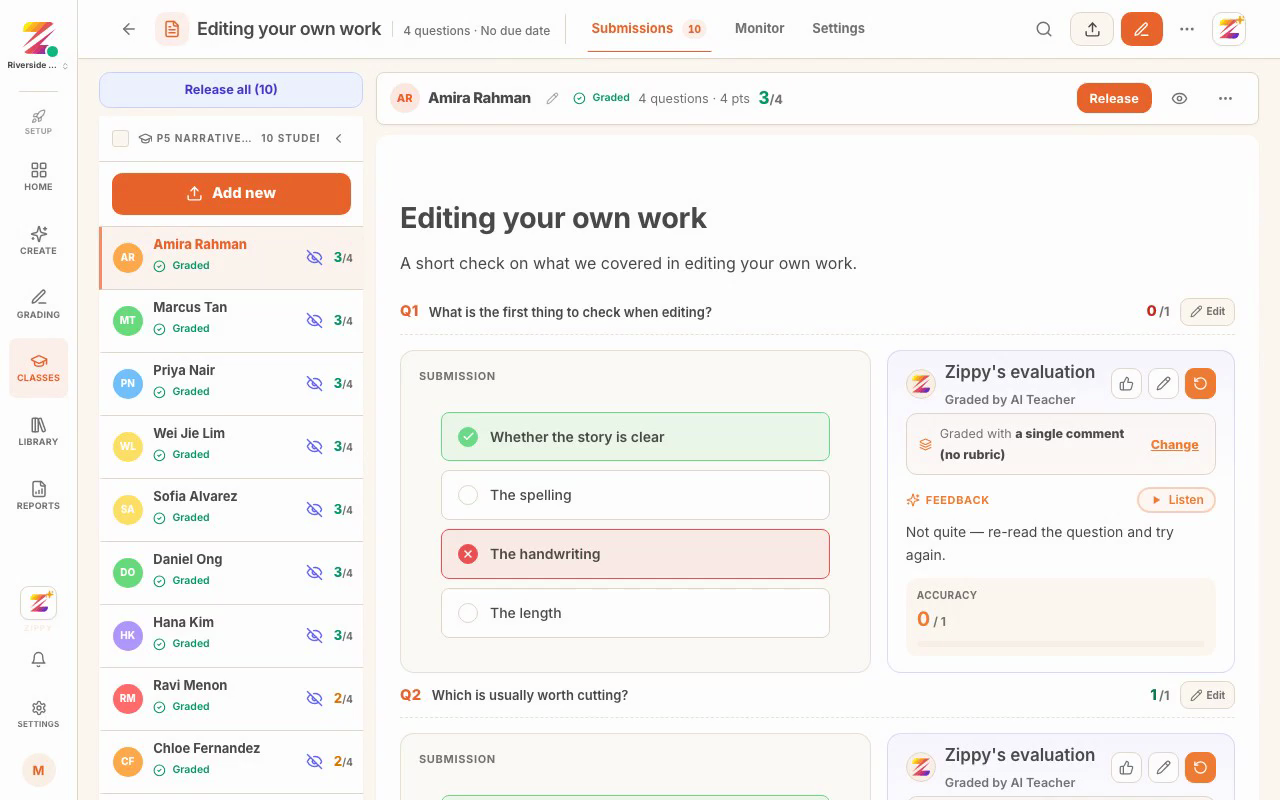 A cell selected, and the marked submission it opens.
This is the loop the gradebook exists to close. See a red cell, click it, read what actually happened, adjust the mark if you disagree, and move on. You are never more than one click from the evidence behind a number.
6. Handle unlinked submissions
If some work came in without a name Zippy could match to your roster, it appears below the roster under Unlinked, needs assigning, and as a count in the toolbar.
Click through and assign each one to a student. Until you do, that work is graded but it is not counted in anyone's average, which is why a class total can look lower than it should.
Where to go next
- Bulk grading a class set for the marking itself.
- The Students tab for the same class ranked by risk, with completion and last-active dates.
- Class Analytics for improving, struggling, and inactive students, average score by activity, and skill mastery.
Every number here comes from work you have already approved. Zippy does the first pass and the arithmetic. What the class does next is still your call.