
Generating a lesson
Zippy drafts the first version so you can spend your time on the part that needs you. You describe what you want, check the plan, and then keep shaping the result: ask for changes in the same chat and Zippy edits the lesson in place, or add a single block yourself with the Insert button.
Watch the walkthrough
The walkthrough runs the whole journey: describe, plan, draft, then every way to change what came out. Ask in the chat and the same lesson updates, select a passage and ask in place, describe a block for Zippy to build, or pick one yourself with Insert.
Everything you can make starts here. Lessons, worksheets, quizzes, rubrics and more.
Start from Create
Open Create in the left rail. Everything you can make is here, grouped by what it is for.
- Teach: Lesson, Lesson plan, Presentation, Handout.
- Assess: Worksheet, Quiz, Exit ticket, Rubric.
- Reference: Image, Flashcards, Skill map.
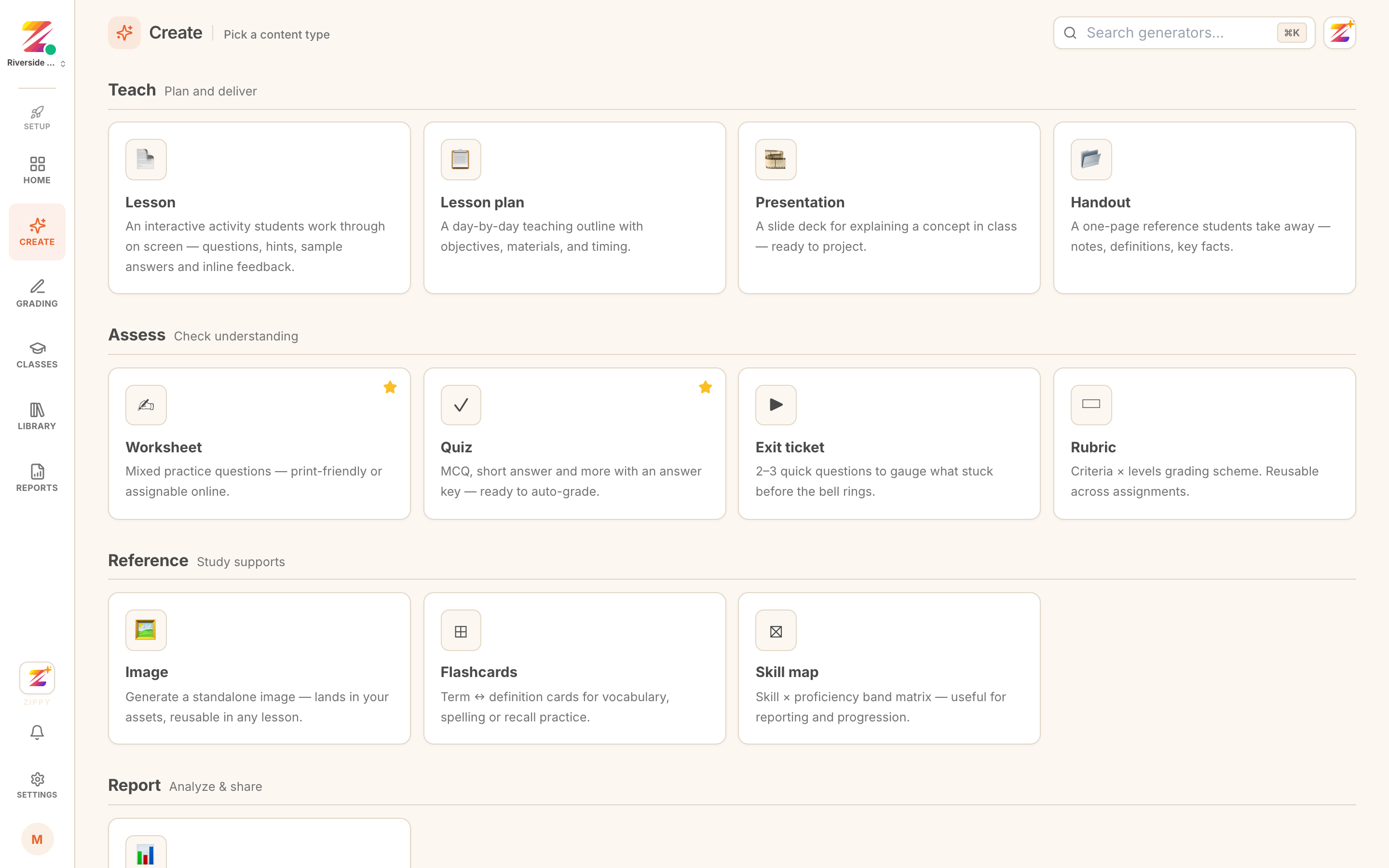 The Create screen with the Teach, Assess and Reference tiles.
A Lesson is the interactive kind: students work through it on screen, with questions, hints, sample answers and inline feedback. Pick that one.
1. Describe what you want
Write it the way you would say it to a colleague. Topic, level, and anything that matters about the shape of it.
A Primary 5 lesson on writing a strong story opening, with two practice questions.
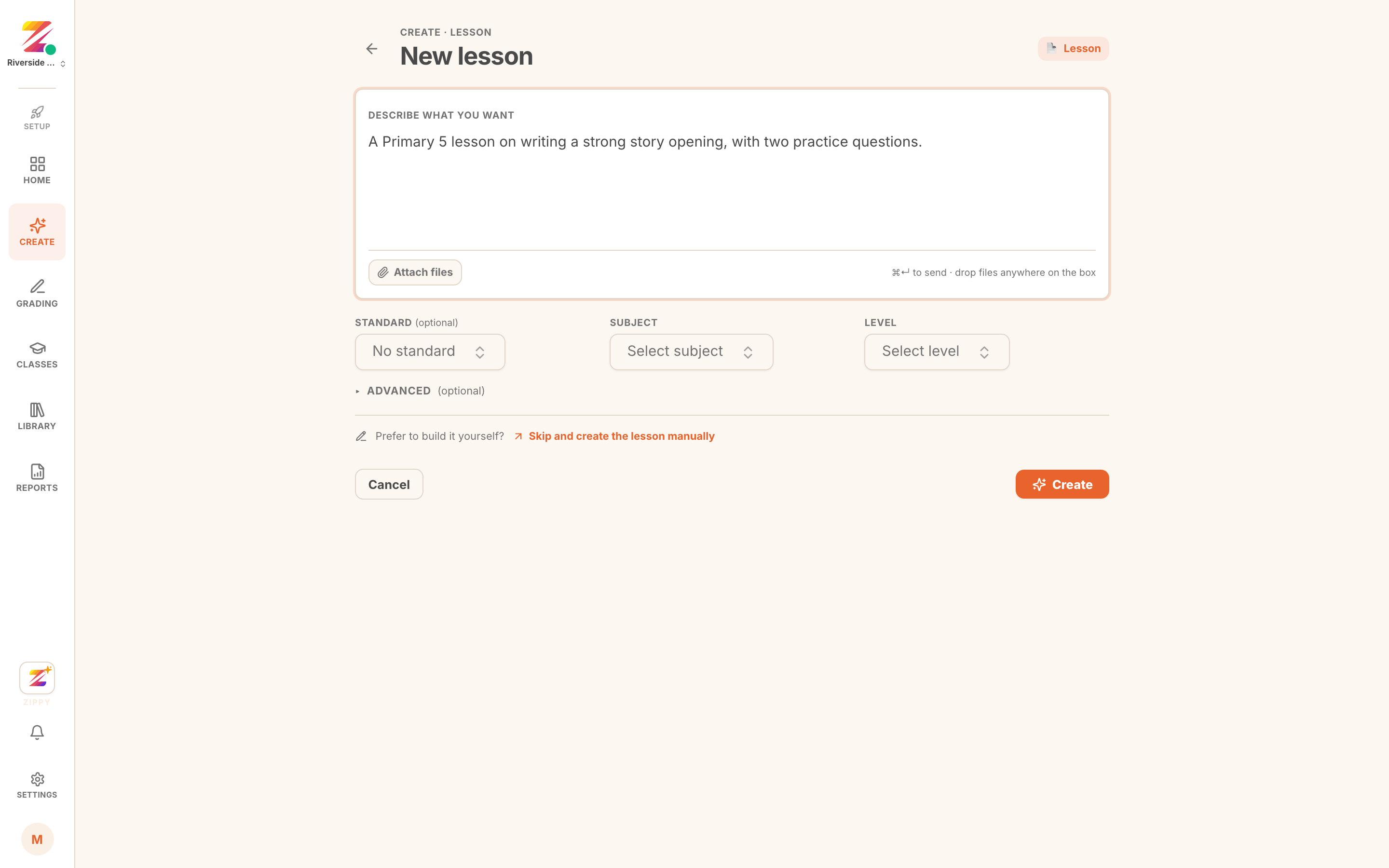 The lesson prompt box with a description typed in.
You can attach files here too. Images, PDFs, or a document, if you want the lesson grounded in something you already use. Press Create when you are ready.
2. Check the plan before it writes
This is the step worth slowing down for. Before writing the lesson, Zippy shows you the plan: the gist, the outline beat by beat, and how many questions it intends to include.
Read the outline. If the shape is wrong, say so in the box and it will rebuild against your note. If it is close enough, let it run.
Changing the plan here costs you a sentence. Changing it after the lesson is written costs you an edit pass, so it is worth the ten seconds.
3. Watch it draft
The lesson streams into the editor as it is written, so you can see it take shape rather than waiting on a spinner. On the right, Zippy shows what it is doing: loading the authoring skill, checking the outline, saving the lesson.
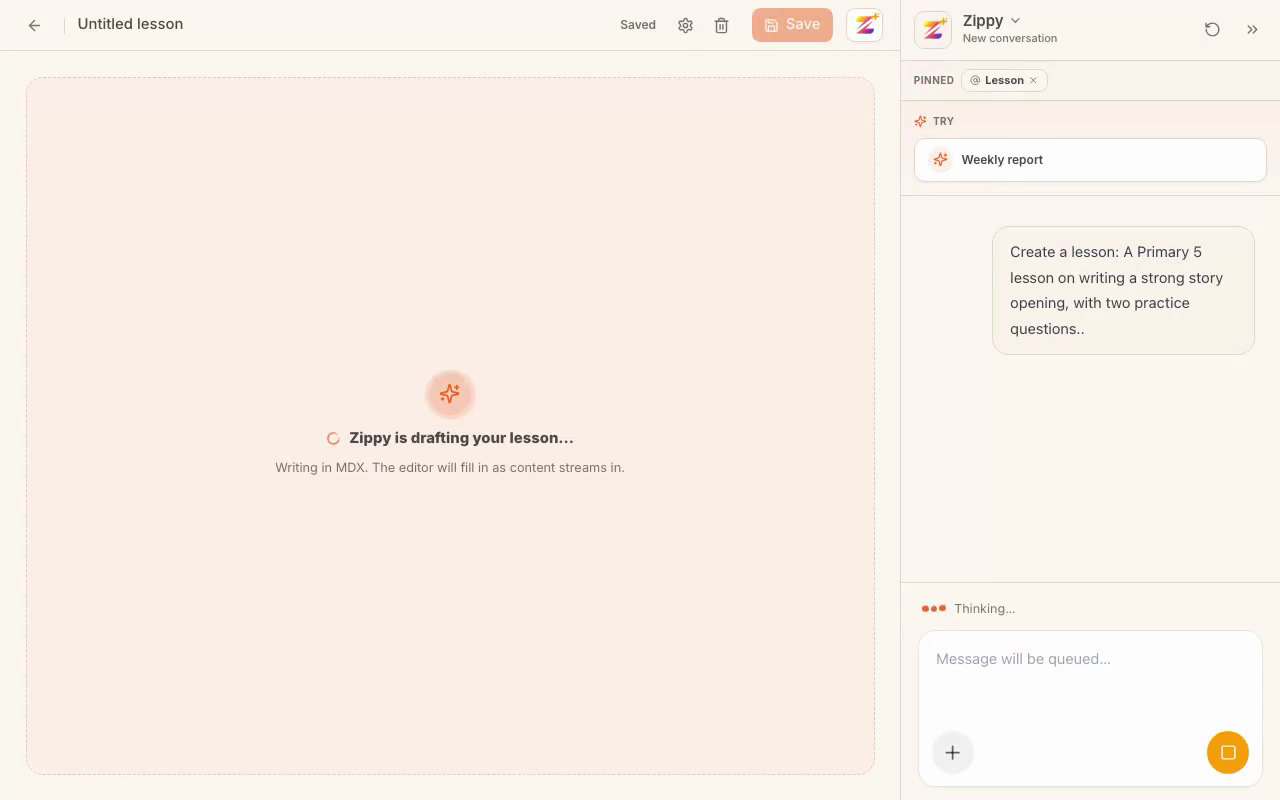 The editor mid-generation with content streaming in.
A full lesson usually takes between thirty seconds and a couple of minutes, depending on how much you asked for.
4. Edit it like a document
What lands is a real lesson in a visual editor, not a wall of text you have to reformat. Headings, callouts, examples, and question blocks are all editable in place.
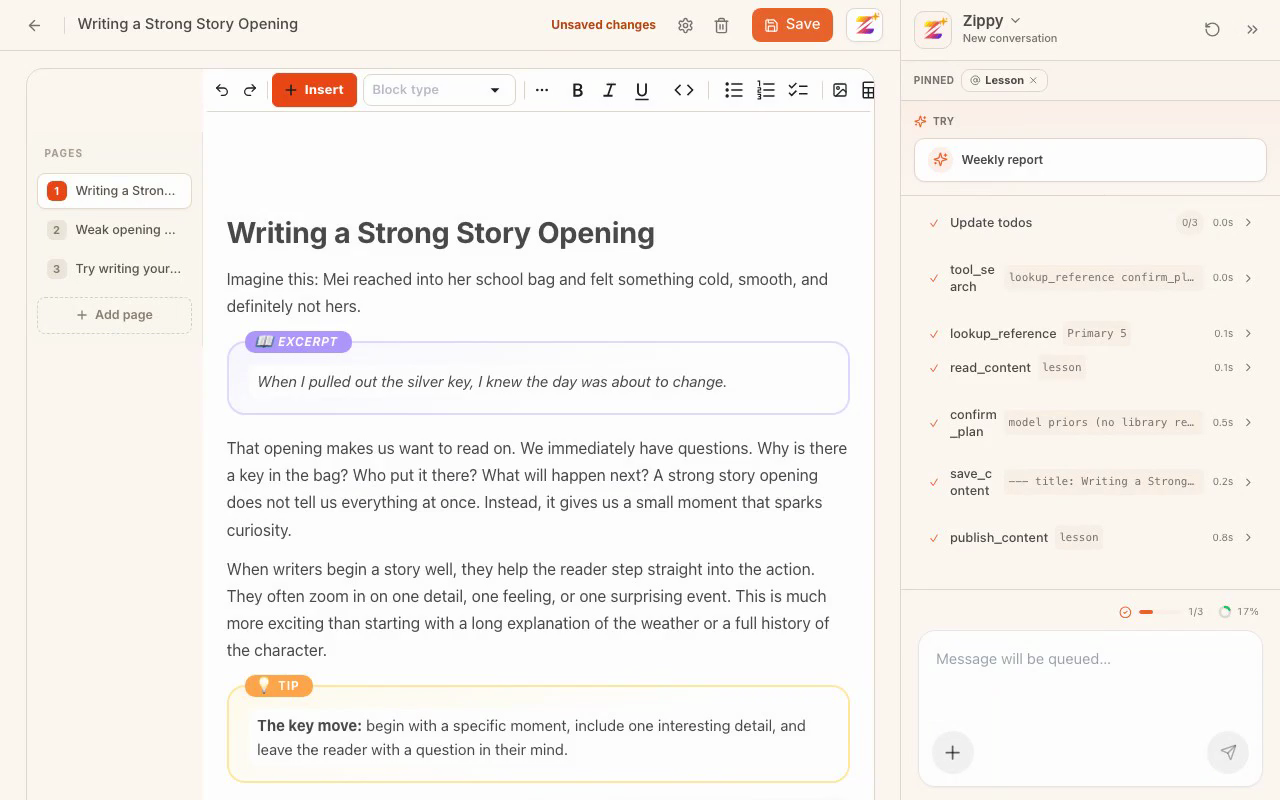 The finished lesson in the editor, with a question block visible.
The things worth checking on a first pass:
- The questions. They carry the answer key and the inline feedback students see, so read them as a set.
- The examples. Generated examples are usually sound but generic. Swapping in one from your own class is the single highest-value edit you can make.
- The level. If the vocabulary is drifting above or below your class, say so and regenerate that section rather than rewriting it by hand.
Your changes save as you go. The status in the top bar tells you where you are: Saving, Unsaved changes, or Saved.
5. Ask for changes in the same chat
You do not have to leave the conversation to change what came out. In the same chat that drafted the lesson, ask for what you want:
Add one more multiple choice question at the end.
Make question two harder.
Add a callout at the top about planning before writing.
Zippy reads the lesson as it stands, makes that one change, and saves it back to the same lesson. The library does not grow a second copy, and everything else in the lesson stays exactly as it was. On the right you can watch it work: reading the lesson, saving the edit, publishing.
This works whenever a lesson is open, not just straight after generating. Come back a week later, open the lesson, and ask in the chat: it edits that lesson.
6. Edit in place: select text and ask
For a change to one passage, you do not need the chat at all. Select the text in the canvas and the Ask Zippy bubble floats up with one-click actions:
- Rewrite it more simply, more vividly, or more concisely.
- Turn it into a question, generate an image for it, or add a hint.
- Or open Ask Zippy and say what you want in your own words.
The change lands on that passage, in that lesson. It is the fastest way to fix the one paragraph that is pitched wrong without touching anything else.
7. Add a block: describe it, or pick it
The Insert button in the toolbar covers the other two ways in. It opens the same menu as typing / in the canvas or Add a block at the bottom of the lesson, and it works in both directions:
Describe it. At the top of the menu, Describe your component takes a sentence:
A multiple choice question asking which story opening technique creates the most suspense.
Zippy builds that block and writes it into the lesson, answer key and feedback included.
Or pick it yourself. Below that sits the full catalog, and the block drops in at your cursor, ready to fill in:
- Questions: multiple choice, short text, long writing, fill in the blank, drag and drop, audio, image upload.
- Teaching blocks: callouts, images, reference cards, read-aloud, an embedded AI teacher.
- Structure: page breaks, timers, tables, an end-of-lesson celebration.
A good habit: pick the block yourself when you know the shape, describe it when you want the substance written for you, and select text in place when the change belongs to one passage.
8. Assign it
When the lesson is ready, assign it to a class from the library, or from the lesson itself. Pick the class, set a due date, and it appears on every student's activity list.
9. Or print it for class
Not every lesson is done on a screen. Anything you build in Zippy, a lesson, a worksheet or any other resource, can be printed and used on paper.
It comes out as a proper multi-page document rather than a screenshot of the editor, so mixed question types keep their shape: multiple choice stays multiple choice, and free-text questions print with answer lines under them.
That also closes the loop back to marking. Print a worksheet for a Saturday class, let the children write on it, then photograph the finished pages and upload them. Zippy reads the handwriting and grades it the same way it grades anything typed. See Bulk grading a class set for that half.
What Zippy is doing underneath
The lesson is written as MDX against a fixed component schema, and the same schema validates it in three places: the editor, the backend, and the agent that wrote it. That is why a generated lesson opens cleanly in the editor instead of arriving subtly malformed.
If you want the detail, the engineering write-up is on the blog.
Where to go next
- Bulk grading a class set once students have submitted.
- Reading your gradebook to see how the class did.
Zippy writes the first draft. What your class actually needs is still your call, and the editor is there so that call is easy to make.